Settings Reference
What every option does — so you can tune controls, camera and display without guessing. Search for any setting by name.
Display & graphics
- Screen Center Dot
- Choose whether to display a dot in the center of the screen to help reduce motion sickness.
- Default HUD Display Setting
- Adjust whether or not the HUD is always displayed. (Some HUD elements will not be affected.) On HUD is always displayed. Semi-Off HUD is displayed only when necessary. Off HUD is never displayed.
- HUD Display Settings
- Select which elements of the HUD will be displayed. (A separate window will open.)
- Adjust HUD for Ultra-Wide Display
- Adjust HUD elements closer/farther to the center of the screen. (This setting is only available when an ultra-wide aspect ratio is set.)
- HDR Mode
- Automatically enable/disable HDR mode. Automatically Enable HDR is enabled if available, and disabled if not. Disabled HDR is disabled whether it is available or not.
- Brightness
- Adjust display brightness. (A separate window will open.)
- Uncapped Frame Rate
- Adjusts whether the frame rate for the entire game is limited. On Does not limit the frame rate for the entire game. (Ignores the value in the Frame Rate setting.) Off Limits the frame rate for the entire game based on the value in the Frame Rate setting.
- Graphics Preset
- Apply various graphics settings presets.
- Display Used
- Select the display on which the game is played. (A separate window will open.) (Only available for multi-display setups in Windows 11 or later.)
- Screen Mode
- Adjust what kind of window the game is displayed in. (A separate window will open.) Windowed The game will be displayed in a regular window. Borderless Windowed The game will be displayed in a full-screen window in order to aid player immersion.
- Resolution
- Adjust the display resolution. (A separate window will open.)
- VSync
- Turn VSync on or off. (Only available when the Frame Interpolation setting is disabled.)
- Frame Rate
- Adjust the maximum frame rate.
- Texture Quality
- Adjust the resolution of object textures.
- Texture Filtering Quality
- Adjust the sharpness of object textures.
- Shadow Quality
- Adjust the quality of shadow effects.
- Mesh Quality
- Adjust the quality of the polygon meshes used for 3D models.
- Motion Blur
- Adjusts whether to allow the area around moving objects to be blurred to emphasize speed.
- Graphics Mode
- Apply graphics settings that may have an effect on gameplay/performance. Prioritize Performance Prioritizes frame rate over resolution. This may improve smoothness of character movement and responsiveness. Prioritize Quality Prioritizes resolution over frame rate. This may improve graphical fidelity.
- Fixed Frame Rate
- Lock the frame rate at a specified FPS. - Fix at 60 FPS: Ensures that the frame rate stays at a constant 60 frames per second. (Only available when Graphics Mode is set to "Prioritize Performance.") - Fix at 40 FPS: Ensures that the frame rate stays at a constant 40 frames per second. (Only available when Graphics Mode is set to "Prioritize Performance," and 120Hz Mode is set to "On.") - Fix at 30 FPS: Ensures that the frame rate stays at a constant 30 frames per second. (Only available when Graphics Mode is set to "Prioritize Quality.")
- Upscaling (Super Resolution)
- Uses one of a number of techniques that can improve graphical quality without compromising game performance.
- Frame Interpolation
- Turn on/off frame interpolation technology that can significantly improve frame rate. Enabling this will cause the frame rate to increase, potentially exceeding the limit set in "Display" settings. (Only available under certain circumstances.) (Can be enabled when Hardware Accelerated GPU Scheduling is enabled in your OS settings.) (Will set VSync to "Off".)
- Sky/Cloud Quality
- Adjust the quality of sky and clouds displayed in the game.
- Foliage Quality
- Adjust the quality of in-game foliage such as grass and trees.
- Ground Quality
- Adjust the quality level of deformations in the ground/floor.
- Screen Space Reflection
- Adjust quality settings for reflections. (Only available when the Ray Tracing setting is disabled.)
Camera
- Camera Speed: Vertical
- Adjust vertical camera movement speed.
- Camera Speed: Horizontal
- Adjust horizontal camera movement speed.
- Camera Movement: Vertical
- Select whether or not to reverse vertical camera movement.
- Camera Movement: Horizontal
- Select whether or not to reverse horizontal camera movement.
- Camera Sensitivity
- Set mouse camera sensitivity. The higher the number, the more the camera will move when the mouse is moved.
- Camera Sensitivity: Vertical
- Adjust the sensitivity of vertical mouse camera movement. The smaller the number, the less vertical camera movement will occur when the mouse is moved.
- Camera Sensitivity: Horizontal
- Adjust the sensitivity of horizontal mouse camera movement. The smaller the number, the less horizontal camera movement will occur when the mouse is moved.
- Camera Shake
- Adjust the intensity of camera shake.
- Camera Deadzone: Normal
- Set the point at which small movements of the camera are registered. You can test your current deadzone setting by moving Camera.
- Standard Camera Inertia
- Adjust how quickly camera movement responds to inputs.
- Camera Tilt Correction
- Turn camera tilt correction on/off. This aids visibility when traveling uphill/downhill.
- Camera Pan Correction
- Turn camera pan correction on/off. This aids visibility when traveling sideways.
- Move Camera with Mouse
- Decide whether the camera can be controlled with the mouse or not. On The camera can be moved with the mouse. When the mouse cursor is not displayed, the mouse will not be able to move outside the game window. Off The camera cannot be moved with the mouse. If playing in windowed mode, the cursor can be moved outside the game window.
Controls & accessibility
- Vibration
- Turn controller vibration on/off.
- Adaptive Triggers
- Turn on/off trigger effect when performing certain special actions.
- Mouse and Keyboard Controls
- Assign controls to the mouse or keyboard. (A separate window will open.)
- Switch Buttons for Menus
- Switch the buttons that open the main and system menus. This will also switch the cutscene skip and pause buttons.
- Reverse L/R Mouse Buttons
- Select whether or not to reverse the functions of the left and right mouse buttons.
- Sprint Control
- Adjust how sprinting is triggered. Toggle Press Dash once to start sprinting, and again to stop. Hold Hold Dash to sprint.
- Keyboard Layout
- Set the type of keyboard connected so that the correct key icons will be shown on control guides, etc.
- Deflect Control
- Choose how deflection is performed when using mouse and keyboard controls. Type 1 Deflection is performed by using ForwardLeftBackRight+Guard in the direction of the attacking enemy. Type 2 Deflection is performed by using Guard+Interact.
- Mouse Cursor When Selecting Items
- Set whether or not the mouse cursor will be displayed when selecting items or Oni Armaments.
- Switch Buttons for Confirm
- Switch the buttons used to perform confirm and cancel actions in the menus.
- Button Icon Type
- Adjust the controller button icons displayed for control guides, etc. Type 1 ○✕△□OptionsTouchpadL1R1L2R2 Type 2 ○✕△□OptionsTouchpadL1R1L2R2 Type 3 ○✕△□OptionsTouchpadL1R1L2R2
- Controller Speaker
- Adjust audio playback levels coming from the controller speaker when using a DualSense® wireless controller. (A separate window will open.)
Audio
- Volumetric Fog Quality
- Adjust the quality of lighting effects caused when light hits dust and other particles in the air.
- Master Volume
- Adjust the overall volume.
- Music Volume
- Adjust the music volume.
- Sound Effect Volume
- Adjust the sound effect volume.
- Voice Volume
- Adjust the voice volume.
- Sound Output
- Display various information related to audio output.
- Voice Language
- Choose which language voice audio will be played in. (A separate window will open.)
Subtitles
- Subtitles
- Adjust whether or not subtitles will be displayed for character dialogue. (Some dialogue is not affected by this option)
- Subtitle Size
- Adjust the size of subtitle text.
- Subtitle Color
- Adjust the color of subtitle text.
- Subtitle Background
- Adjust whether or not backgrounds will be added in order to make subtitles easier to read.
- Subtitle Background Density
- Adjust the opaqueness of subtitle backgrounds.
Language
- Display Language
- Choose which language text will be displayed in. (A separate window will open.)
General
- Auto-Centering
- Turn camera auto-centering on/off. This automatically adjusts the camera angle to follow the current direction of travel.
- Motion Sickness Reduction
- Press Apply to set the recommended defaults for reducing motion sickness. The following settings will be applied: - Screen Center Dot: Show - Camera Shake: Off - Motion Blur: Off
- Disable Alt+F4 Force Quit
- Disable the function whereby Alt+F4 can be used to quit out of an application.
- Disable Windows Key
- Disable all OS commands activated by pressing the Windows key. (Requires a game restart in order to take effect.)
- Speaker Names
- Adjust whether or not speaker names will be displayed for character dialogue.
- Speaker Name Color
- Adjust the color of speaker names.
- Closed Captions
- Adjust whether or not closed captions will be displayed in order to provide supplemental information for audio in the story.
- Menu Text Size
- Adjust the size of the text displayed in menus. (Some text will not be affected.)
- HUD Size
- Adjust the size of the HUD. (Some HUD elements will not be affected.)
- Guide UI Size
- Adjust the size of button guide information. (Some elements will not be affected.)
- Navigation
- Show or hide on-screen information guiding you to your next destination.
- Tips
- Adjust whether or not in-game guidance information is displayed. (Some important information will be displayed regardless.)
- Blood Effects
- Select whether to show or hide blood effects. (Blood will still be shown in certain scenes.)
- Blood Color
- Select the color of the blood used in the game. (Red blood will still be displayed in certain scenes.)
- Enemy Deaths
- Enable/disable dismemberment and severing animations and effects shown when enemies die. (Some cinematic content and explanatory videos are not affected by this setting)
- Show Soul Counts
- Turn the display of numbers of nearby souls on screen on/off.
- Closed Caption Color
- Adjust the color of closed caption text.
- Visual Accessibility Presets
- Press Apply to set recommended defaults intended to help those requiring visual support. The following settings will be applied: - Subtitles: Show - Subtitle Size: Large - Subtitle Background: Show - Menu Text Size: Large - HUD Size: Large - Guide UI Size: Large
- Auditory Accessibility Presets
- Press Apply to set recommended defaults intended to help those requiring auditory support. The following settings will be applied: - Subtitles: Show - Speaker Names: Show - Closed Captions: Show
- Tip Replays
- Choose whether or not to replay tips for actions you have repeatedly failed to execute successfully.
- Color Space
- Select the color space that best matches your current display.
- NVIDIA Reflex Low-Latency Mode
- When turned on, this option will reduce gameplay latency and improve responsiveness. (Only available for graphics cards that support this feature.)
- Color Blindness Aids
- Apply special filters designed to help color-blind players.
- Color Blindness Aid Strength
- Adjust the strength of filters designed to help color-blind players. Stronger filter settings may cause degraded visual quality in certain areas.
- Aspect Ratio
- Choose your desired aspect ratio. Selecting 21:9 on anything other than an ultrawide monitor will result in the game being displayed in letterbox mode.
- Anti-Aliasing
- Turn anti-aliasing on/off. (Only available when the Upscaling (Super Resolution) setting is disabled.)
- 120Hz Mode
- Set the refresh rate to 120Hz. This can result in smoother visual performance. PLEASE NOTE: - This setting can only be used with 120Hz- enabled displays. - It does not mean that a frame rate of 120 fps will be achieved. - A game restart will be required in order to apply this setting.
- Ray Tracing
- Adjust settings related to ray tracing, which simulates real-time lighting to produce more realistic effects.
- PC Info
- Displays spec information about your PC.
- Upscaling Mode
- Adjust image quality and performance when using upscaling. (Only available when the Upscaling (Super Resolution) setting is enabled.)
- Upscaling Sharpness
- Adjust the image sharpness when using upscaling. The higher the number, the sharper the image. (Only available when the Upscaling (Super Resolution) setting is set to "AMD FSR".)
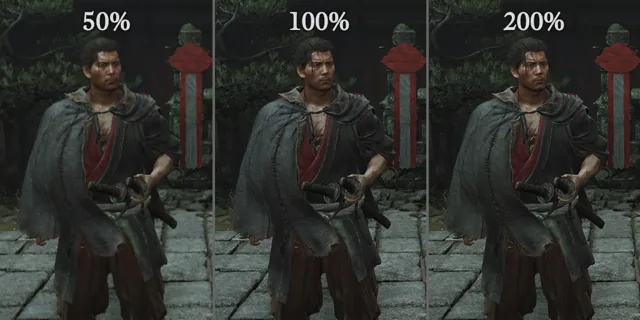
- Render Scale
- Adjust the resolution at which the game is rendered as a percentage. (Only available under certain circumstances.)
- Foliage Movement
- Turn on/off movement of trees, grass, etc.
- Cull Distance
- Adjust the distance at which character models will cease to be displayed.
- Contact Shadows
- Turn on/off finely detailed shadow effects.
- Ambient Occlusion
- Adjust the quality of shadows in areas affected by indirect lighting.
- Bloom
- Adjust the strength of an effect that blurs brighter parts of the image.
- Vignette Effect
- Turn on/off a feature that darkens the outer edges of the image, thereby making the center of the image seem brighter.
- SSSS Scattering
- Turn on/off Screen Space Separable Subsurface Scattering, which more accurately depicts how light scatters upon hitting translucent objects.
- Monaural
- Adjust whether audio is played in monaural or stereo.
- Customize Speaker Angles
- Enable/disable custom speaker angles.
- Speaker Angles
- Adjust the angle of each speaker pair. (A separate window will open.) (Only available when the Sound Output setting is enabled.)
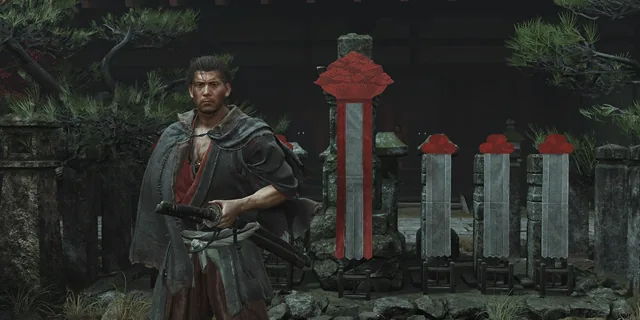
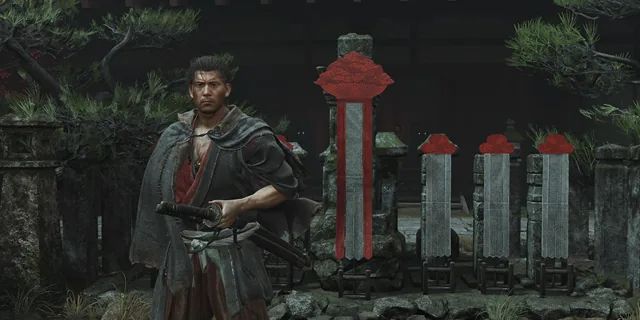
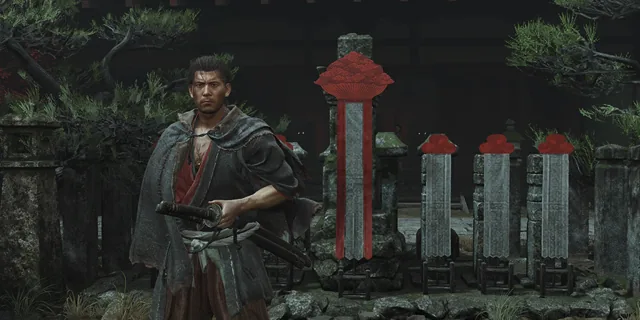
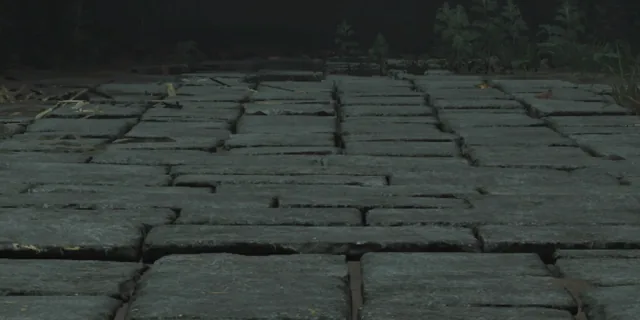
In-game display previews
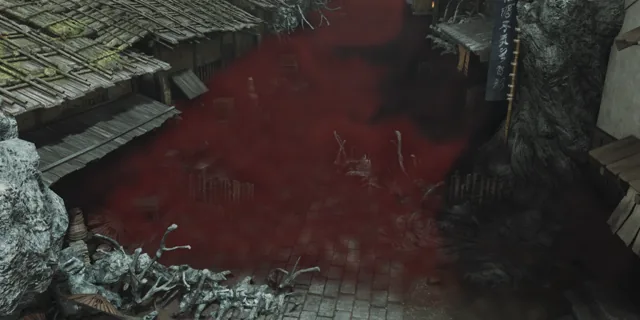
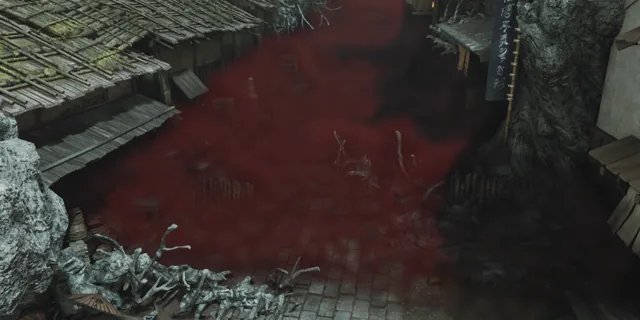
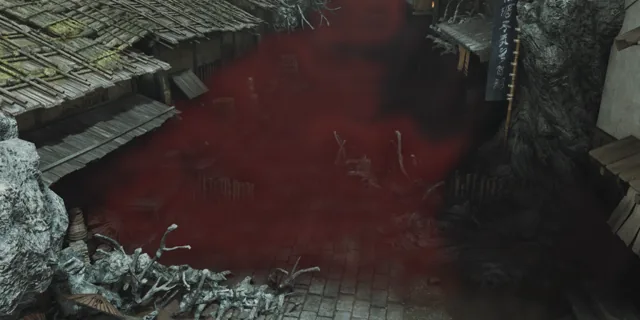
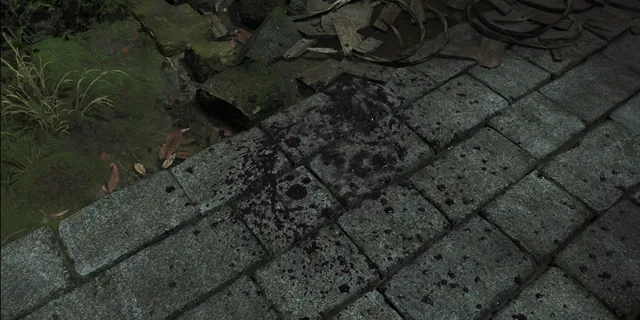
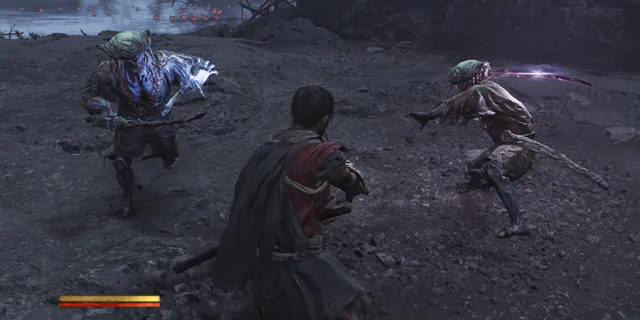
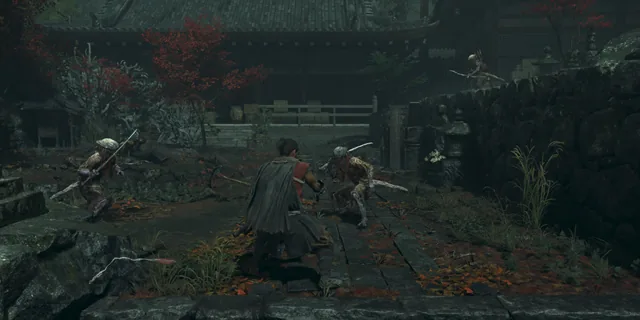
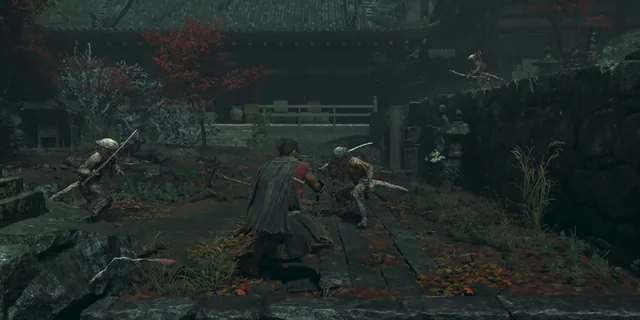
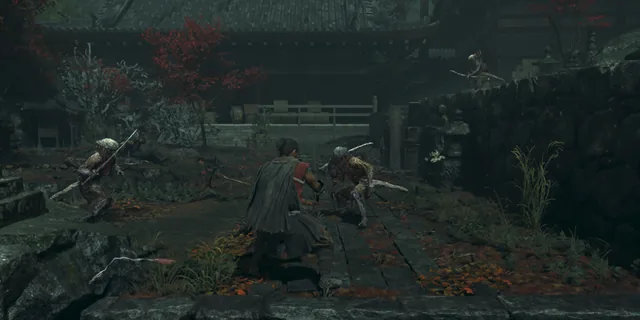
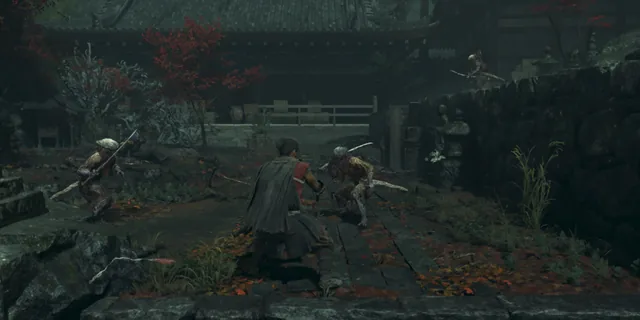
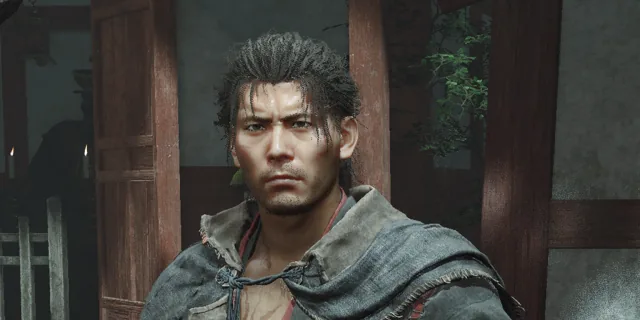
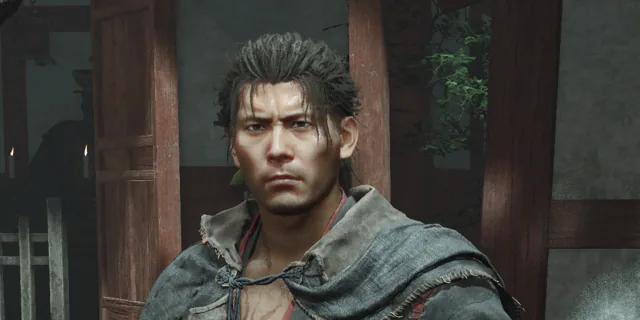
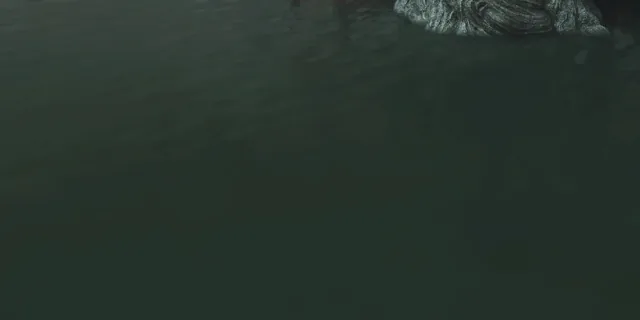
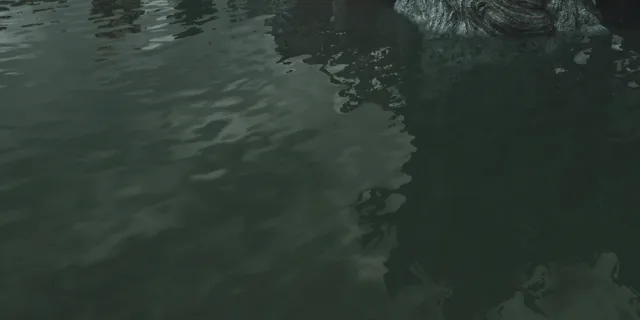
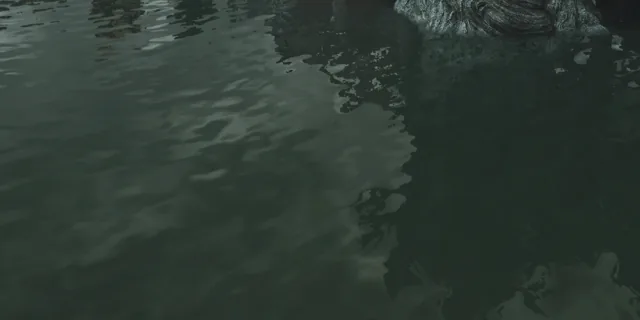
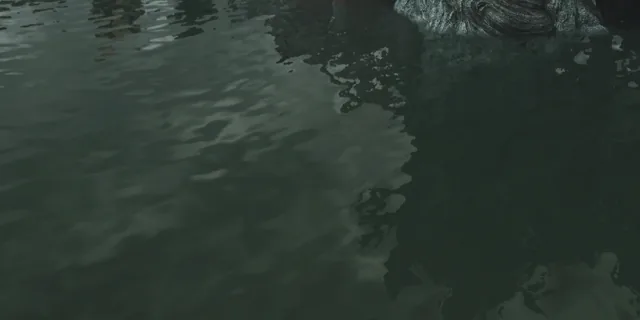
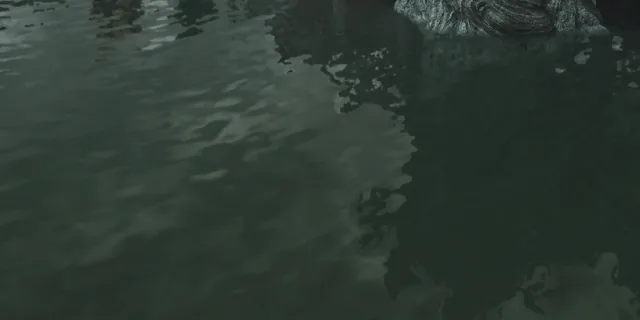
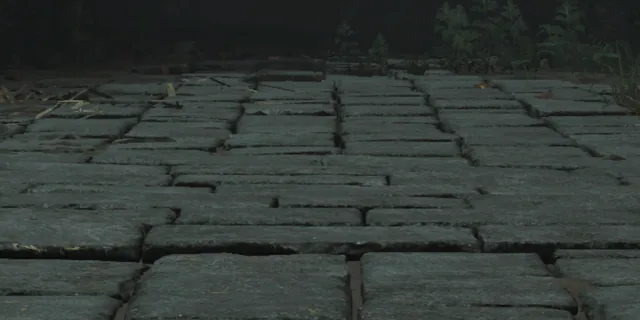
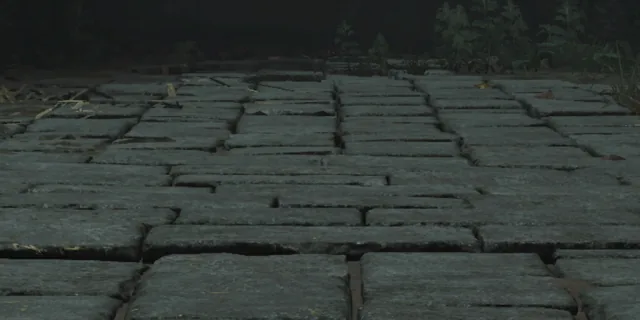
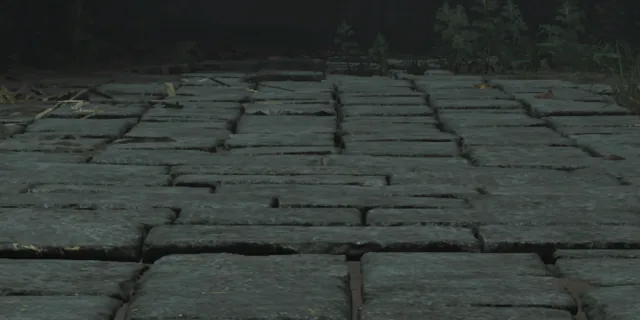
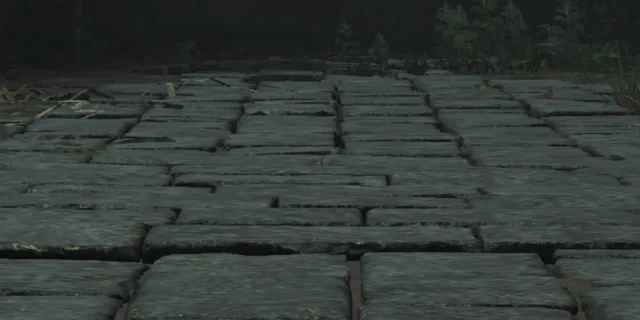
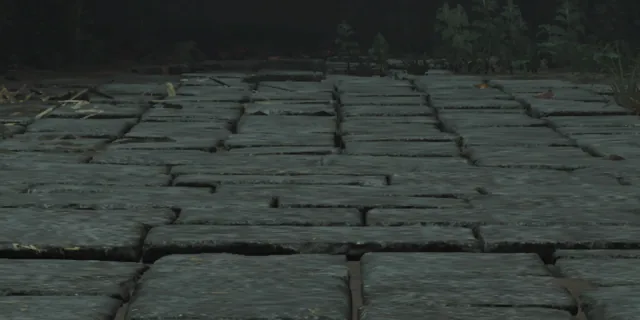
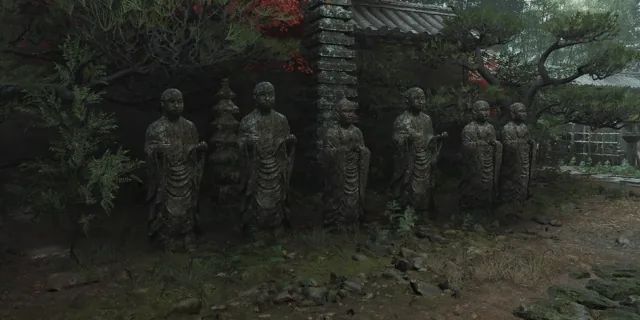
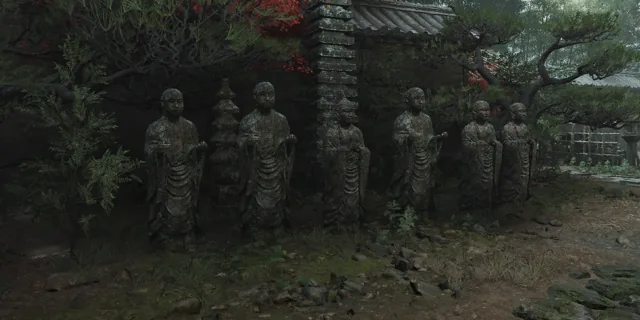
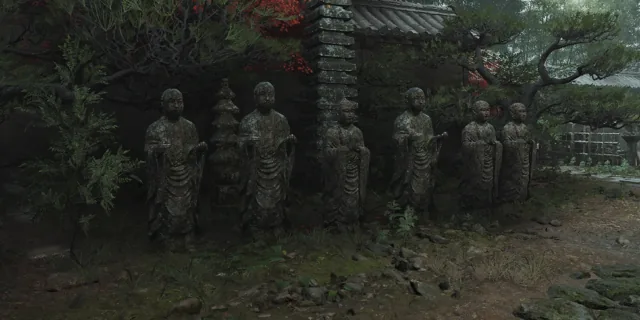
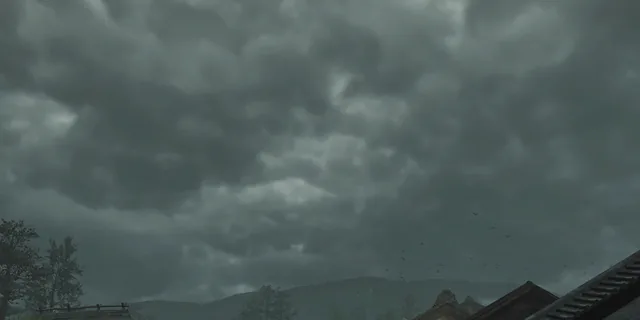
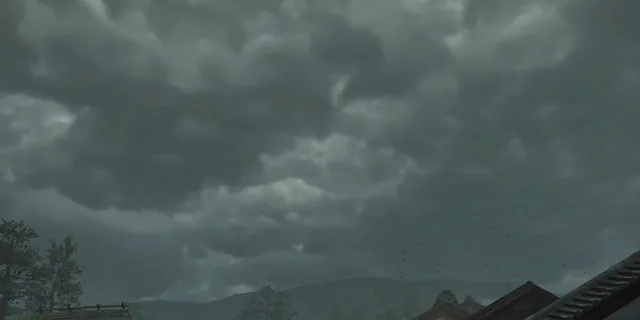
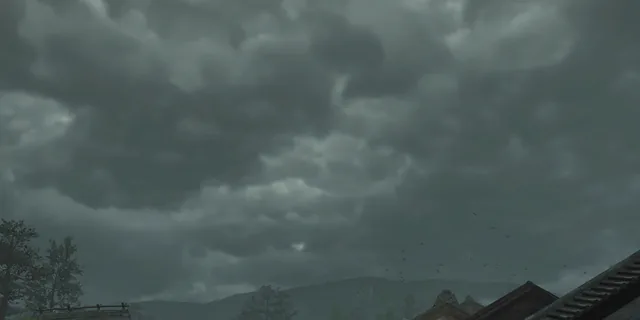
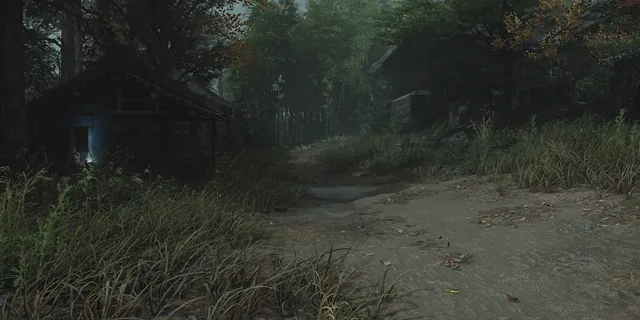
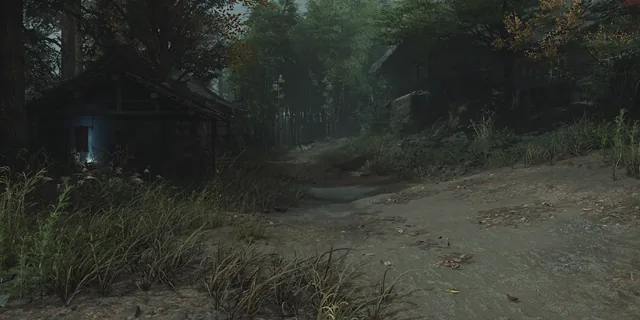
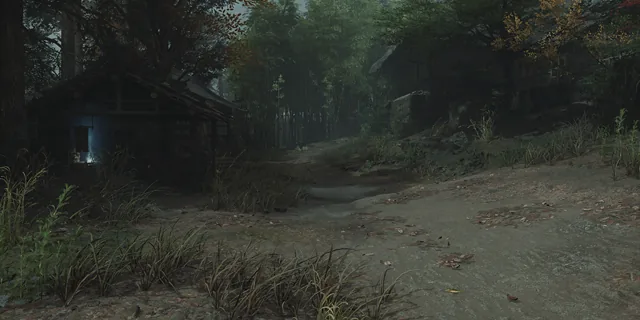
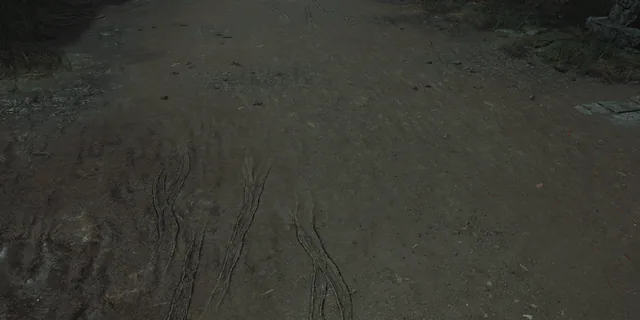
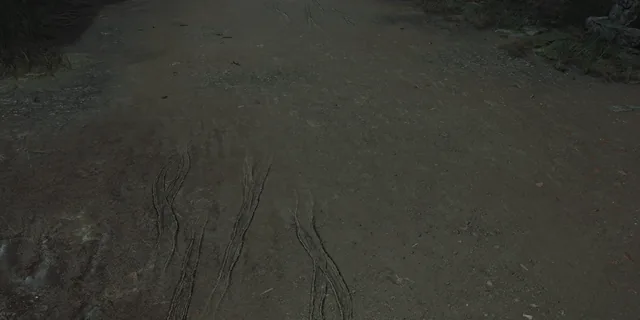
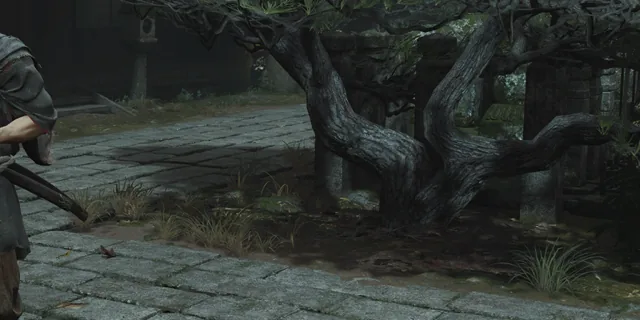
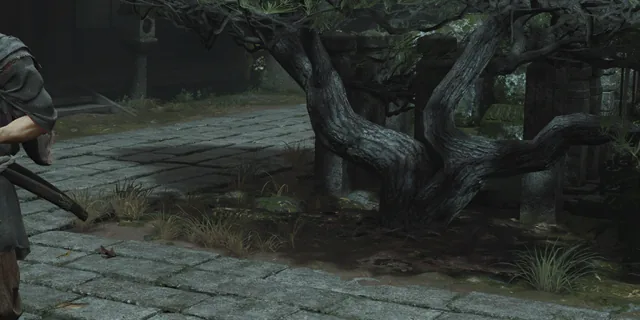
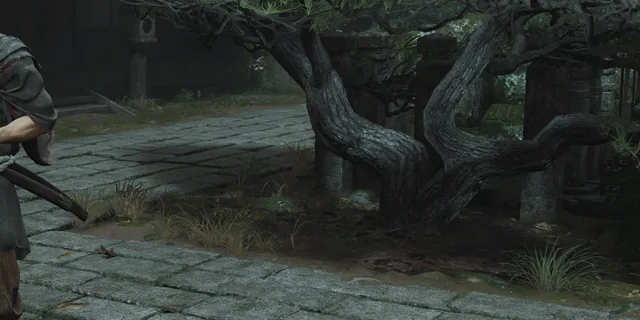
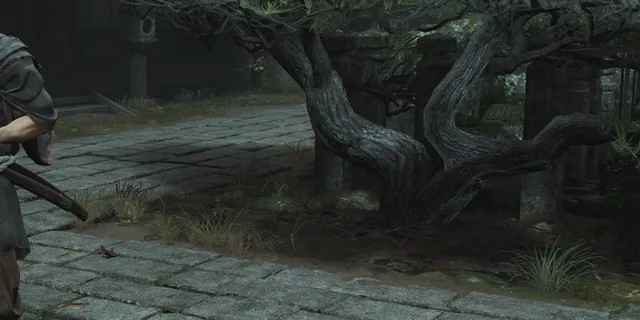
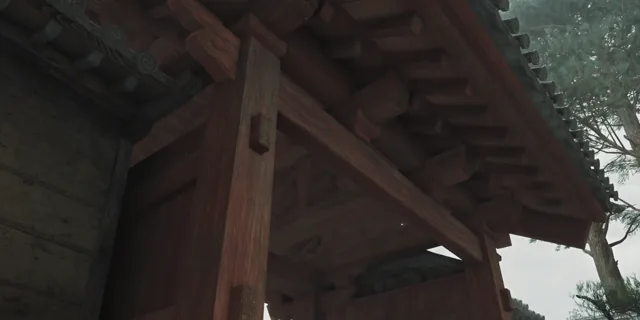
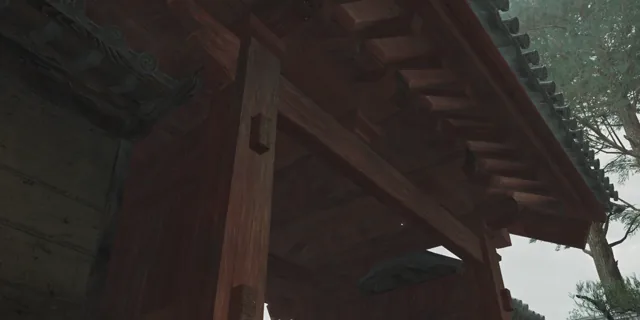
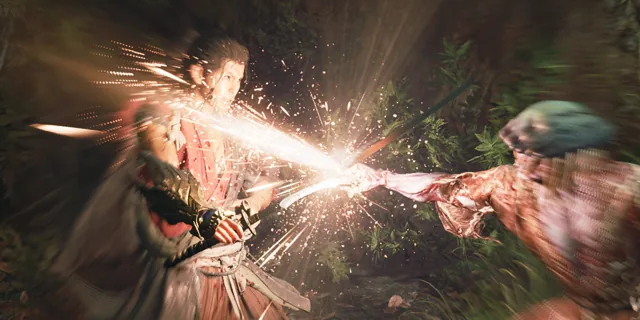
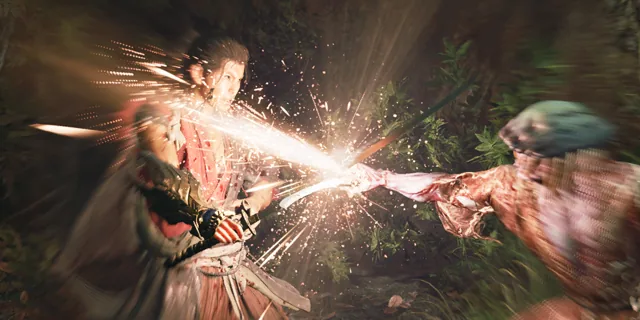
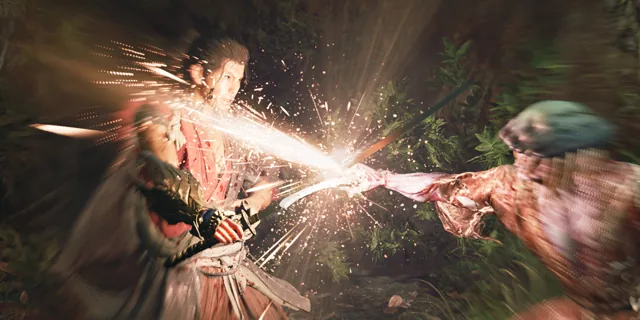
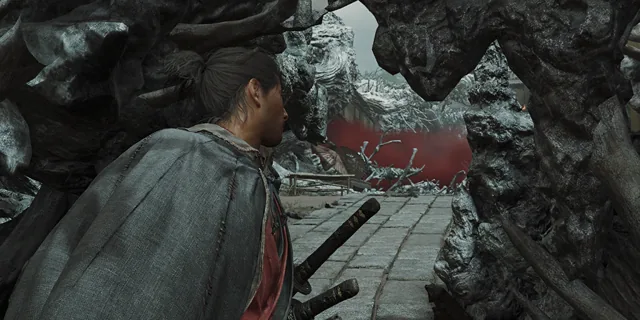
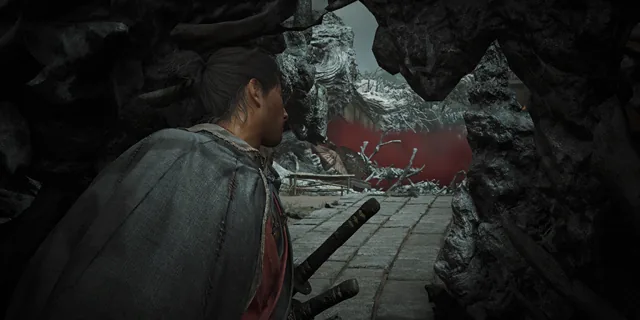
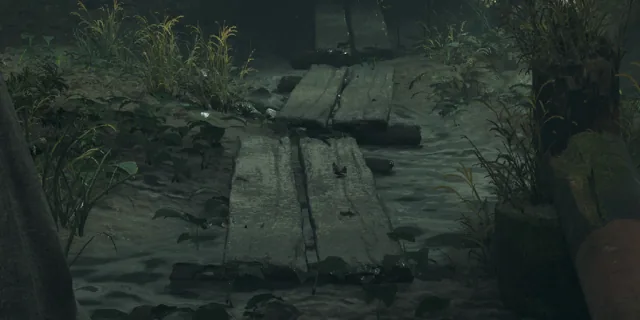
The game illustrates its display and graphics options with preview thumbnails — the same scene shown at each setting value so you can see the difference before applying it. Here are those reference images, grouped into the sets the game cycles through.
Preview set 1
Preview set 2
Preview set 3
Preview set 4

Preview set 5
Preview set 6
Preview set 7
Preview set 8


Preview set 9
Preview set 10
Preview set 11


Preview set 12
Preview set 13
Preview set 14
Preview set 15
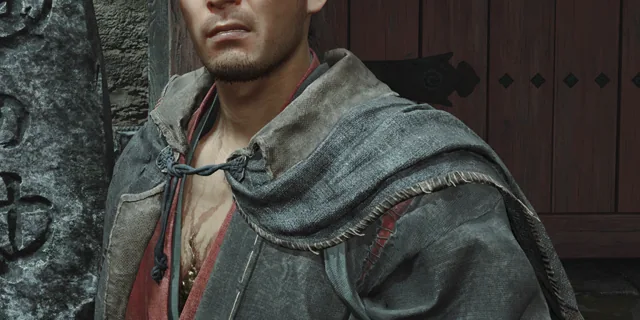
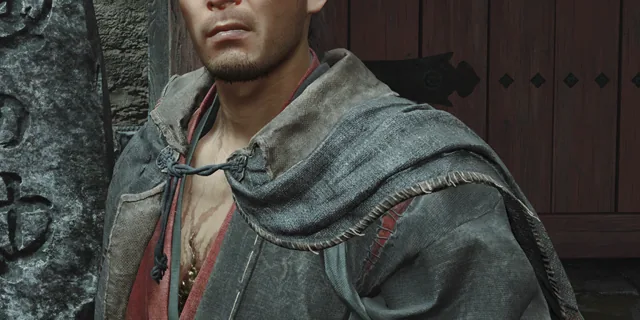
Preview set 16
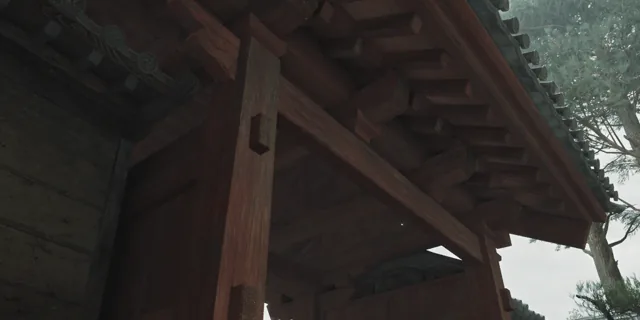
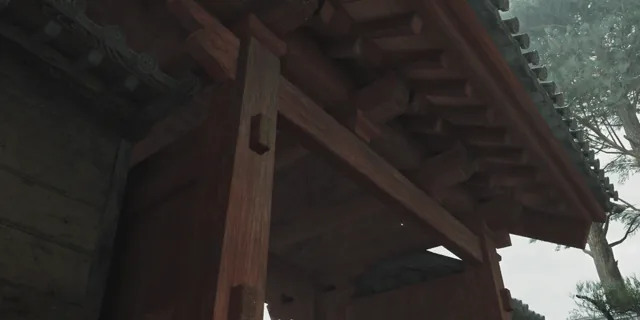
Preview set 17
Preview set 18


Preview set 19
Preview set 20
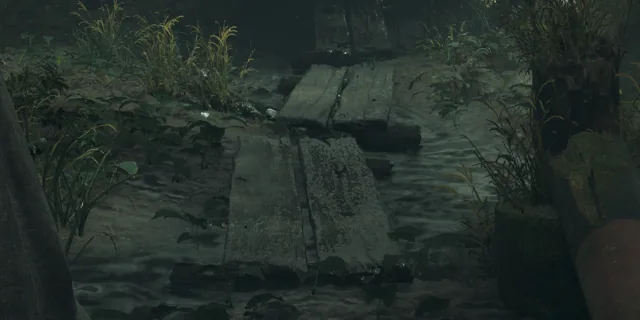
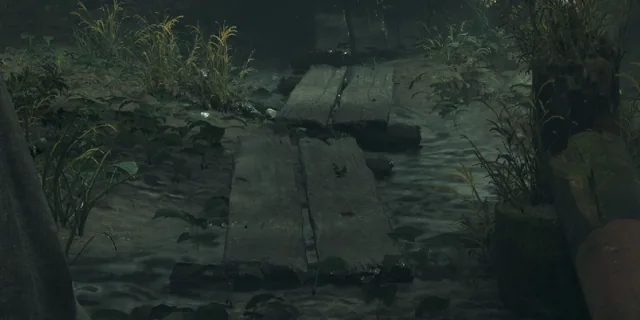
Preview set 21
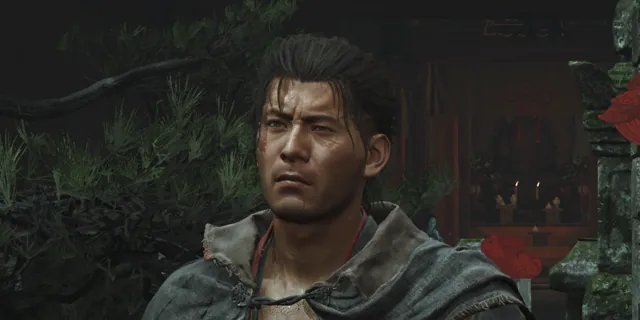
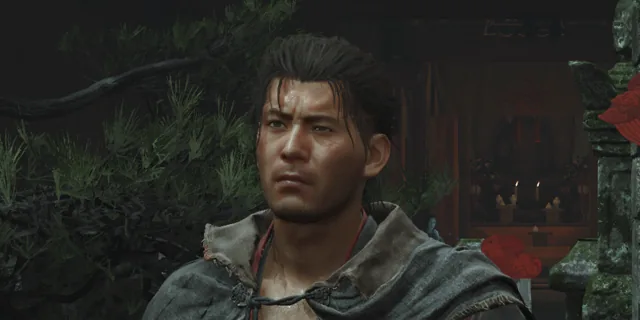
Preview set 22